How to Record a Big Win (Windows, Mac, Android & iPhone)

You've just landed a big win, and you want to share it on the forum. There's just one problem: it's already gone, and all you've got is a screenshot of the balance that doesn't tell the story.
The good news: every phone, laptop and PC made in the last few years can record its own screen, with nothing extra to download.
Windows: Xbox Game Bar or Snipping Tool
Windows has two built-in options for recording your screen, and which one you use depends on your version.
Xbox Game Bar (Windows 10 and 11)
- Press Windows key + G to open Xbox Game Bar.
- Click the Capture widget (or press Windows key + Alt + R to skip straight to recording).
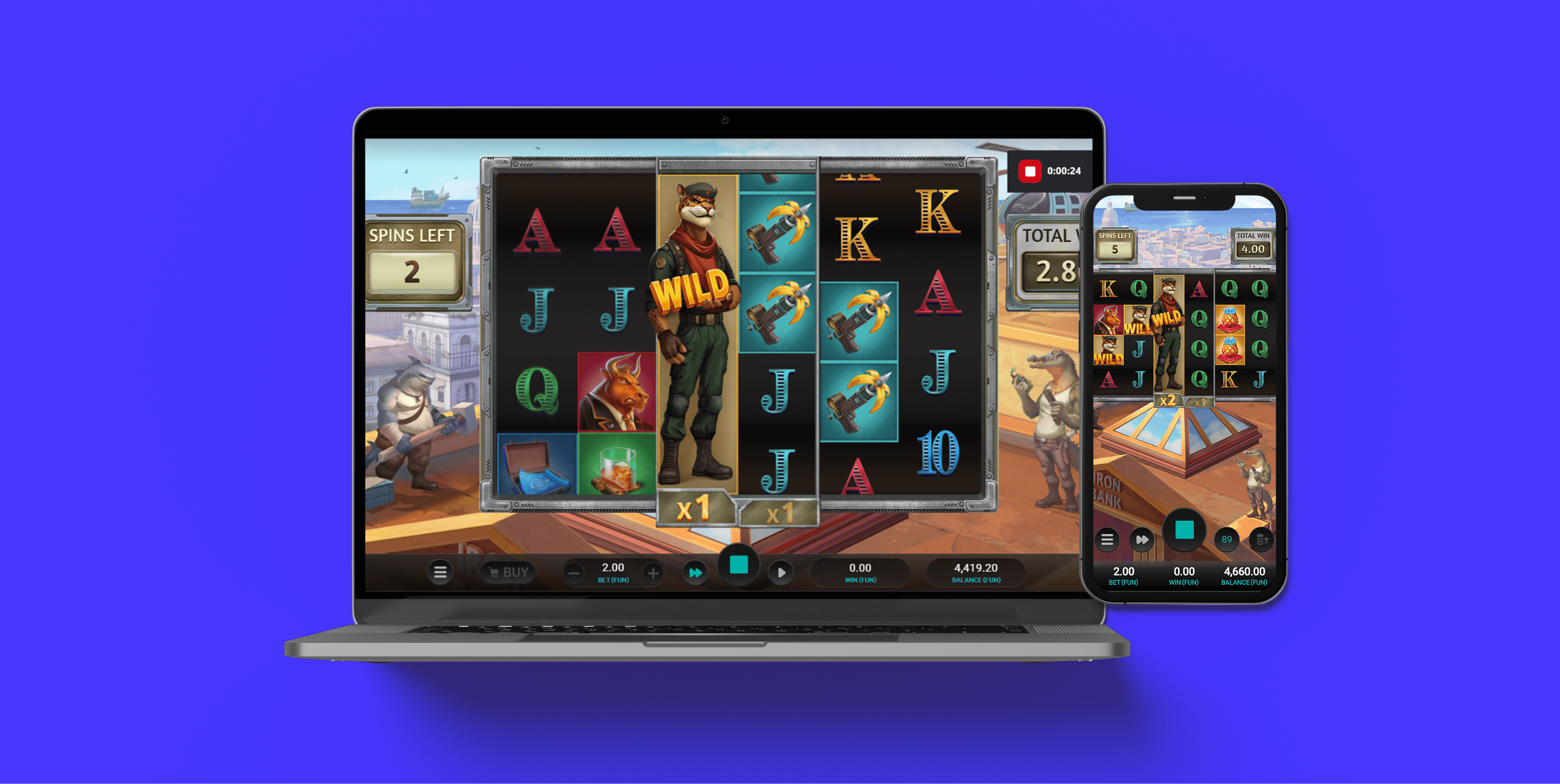
- Hit the round record button. You'll see a small timer appear in the corner of your screen.
- When the win lands, press Windows key + Alt + R again to stop.
Your clip saves automatically as an MP4 in Videos > Captures. Game Bar only records the active window, so make sure your casino game or stream is the window in focus before you start.
One catch: Game Bar sometimes refuses to record your desktop or browser if it doesn't recognise it as a "game." If that happens, right-click the Game Bar settings and turn on "Record in background" or "Remember this is a game" for your browser.
Snipping Tool (Windows 11 only)
Snipping Tool has been around for years as a screenshot tool, but a Windows 11 update added screen recording alongside it. It's worth trying if Game Bar gives you trouble, since it doesn't have the same habit of refusing to record certain windows.
- Open Snipping Tool from the Start menu.
- Switch to record mode (the video camera icon next to the screenshot options).
- Select the area of the screen you want to record.
- Click Start, then Stop when you're done.
Your clip saves to Videos as an MP4. This option isn't available on Windows 10, where Game Bar is your only built-in choice.
Mac: Screenshot Toolbar
macOS has had a native screen recorder since Mojave, tucked inside the same tool you'd use for screenshots.
- Press Cmd + Shift + 5.
- A toolbar appears at the bottom of your screen. Pick Record Entire Screen or Record Selected Portion (the second option is handy if you only want the game window, not your whole desktop).
- Click Record.
- Stop it from the menu bar icon at the top, or press Cmd + Shift + 5 and hit Stop.
The clip saves to your desktop as a .mov file. Before you start, click Options in that same toolbar and set the save location if you'd rather it went straight into a specific folder, which saves you hunting for it later.
Android: Built-in Screen Recorder
Most Android phones from the last few years (Samsung, Pixel, and most others running Android 11+) have this baked into the quick settings panel.
- Swipe down from the top of the screen (twice, if needed) to open Quick Settings.
- Tap the Screen Recorder tile. Can't find it? Swipe left or right, or tap the pencil icon to add it yourself.
- You'll see options to record with sound and to show your taps on screen. Turn "show touches" on so viewers can follow exactly what you're doing.
- Tap Start. You get a short countdown, just enough time to switch back to your game.
- Pull down the notification shade and tap Stop when you're done.
Recordings land in your Gallery or a "Screen recordings" folder, depending on your phone's brand. Samsung and Pixel both use near-identical versions of this, so the steps hold either way.
iPhone: Screen Recording via Control Centre
iPhones have had this since iOS 11, and it works the same way across every model still getting updates.
- Open Settings > Control Centre. Make sure Screen Recording is added (tap the green + next to it if it isn't there).
- Swipe down from the top-right corner to open the Control Centre.
- Tap the record button (a solid circle inside a ring). You'll get a three-second countdown.
- To stop, tap the red bar at the top of your screen, or open the Control Centre and tap the record button again.
Want sound too? Press and hold the record button before you start, then turn on the microphone. The clip saves straight to your Photos app.
A Few Tips Before You Hit Record
- Start early. Begin recording before the bonus round or big spin, not after you've already seen the result. Viewers want to see it land, not just hear the number afterwards.
- Show the bet size. A big multiplier means nothing without context. Make sure your stake is visible on screen before the spin, so viewers can see exactly what the win is relative to.
- Catch the balance before and after. A quick glance at your balance at the start and end of the clip does more to prove a win than the win screen alone.
- Keep it steady. If you're recording your phone screen while also holding it up to a webcam or second device, use a stand. Shaky footage is hard to watch back.
- Trim the fat. Nobody needs three minutes of base game spins before the win. Most phones and Macs let you trim clips right in the Photos or Preview app, with no extra software required.
- Check the file size. Longer recordings, especially in HD, get big fast. The forum's upload limit is 500MB, so if your clip is over that, trim it down or lower the recording resolution in your device settings before uploading.
Fixing the Most Common Recording Problems
A few things trip people up more than others. Here's how to fix them.
The screen recording is black or blank
Some casino platforms and streaming apps use content protection (DRM) that blocks screen capture on purpose, more often in a dedicated app than a mobile browser.
- Try playing through your phone's browser instead of the app
- Or record via a webcam pointed at the screen as a workaround
There's no sound when I record my screen
- Android/iPhone: turn on the microphone toggle before you start recording
- Mac: click Options in the Cmd + Shift + 5 toolbar and turn on audio; it's video-only by default
- Windows: check Settings > Sound for the correct playback device
The screen recorder option isn't there
- Android: swipe left/right in Quick Settings, or tap the pencil icon to add it
- iPhone: add it first under Settings > Control Centre
- Windows: switch it on under Settings > Gaming > Xbox Game Bar
The screen recording lags or drops frames
Close other apps running in the background and free up storage if your device is low on it. Recordings need room to write to disk in real time.
Screen recording won't start because storage is full
Delete old clips or photos you don't need, or lower the recording resolution in your device's camera/recording settings before you start.
The video file is too large to upload
CG's forum caps uploads at 500MB.
- Trim the clip down to just the moment that matters, using the Photos or Preview app
- If it's still over the limit, drop the resolution (1080p instead of 4K, for example)
Permission errors (microphone or screen access denied)
- Android: check Settings > Privacy
- iPhone: check Settings > Privacy & Security
Make sure screen recording and microphone access are allowed for the app you're using.
Third-Party Tools (If You Want More Control)
The built-in tools above will cover most players. If you're streaming regularly and want overlays or finer control over your audio mixing, tools like OBS Studio (free, desktop) or AZ Screen Recorder (Android) are worth a look. They're not necessary for a one-off big win clip, but useful if you want to level up.
Ready to Share It?
Once you've got your clip, head over to our Big Wins section on the forum to see how to post it.
A quick reminder: wins and losses are both part of the game. Keep your play within a budget you're comfortable with, and if you ever want tools to help manage it, like deposit limits or self-exclusion, your operator's responsible gambling section is the place to start.